
OData with RFC function module.
In this step-by-step post we will create oData project which consumes RFC: BAPI_FLIGHT_GETLIST. After getting input from frontend this oData service will execute and send filtered records back to frontend as output.
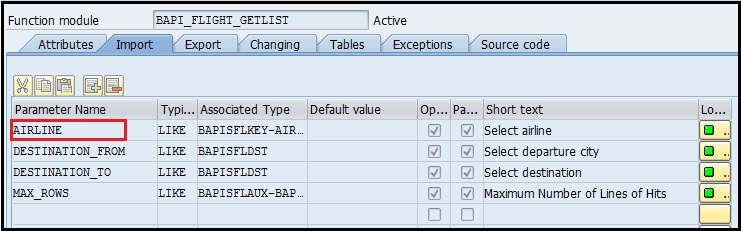
Here we will take AIRLINE as input:
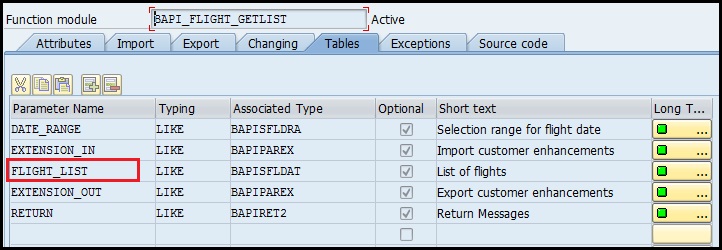
and Table parameter FLIGHT_LIST will be used as output:
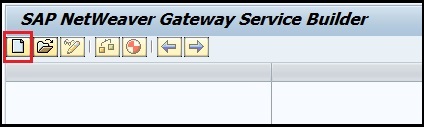
Step 1: To create oData project Goto TCode: SEGW → Click on create button
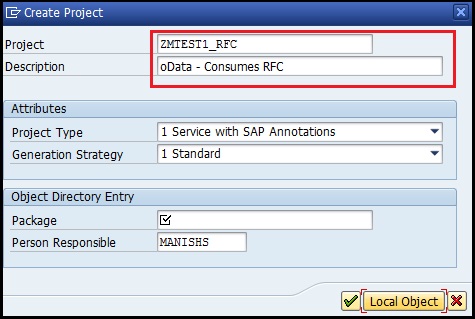
Step 2: Provide the Project name and description
Step 3: Your project is created and you’ll get the below screen

Step 4: Now we need to create Entity and Entity set: Right click on Data Model → Import → RFC/BOR Interface

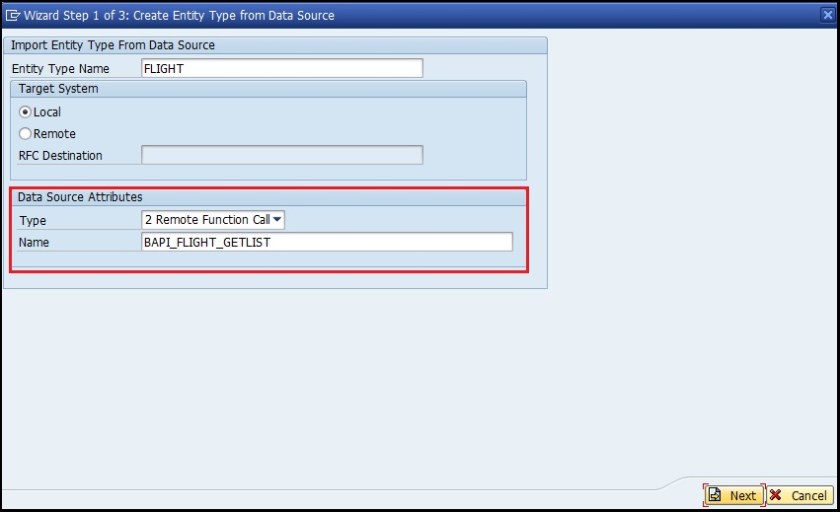
Step 5: Provide Entity name and BAPI name as below. Select Remote radiobutton and Provide RFC destination if your destination is not local → Click on Next.
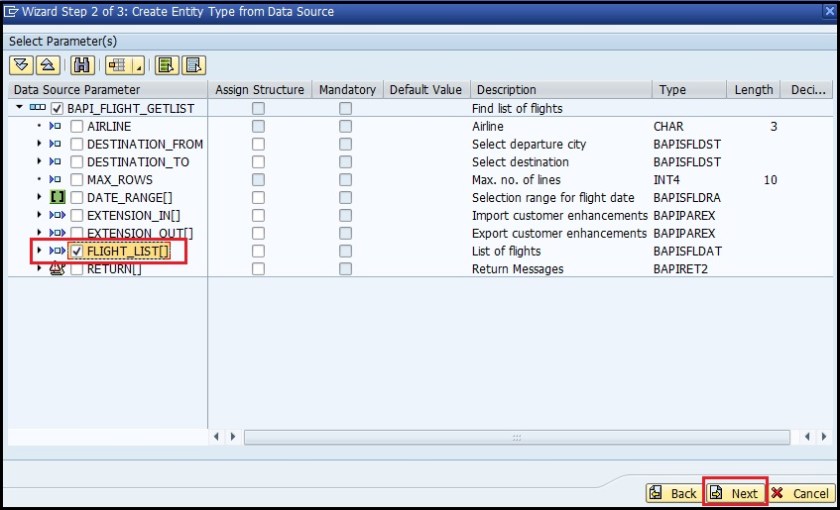
Step 6: Select FLIGHT_LIST here and click on next.
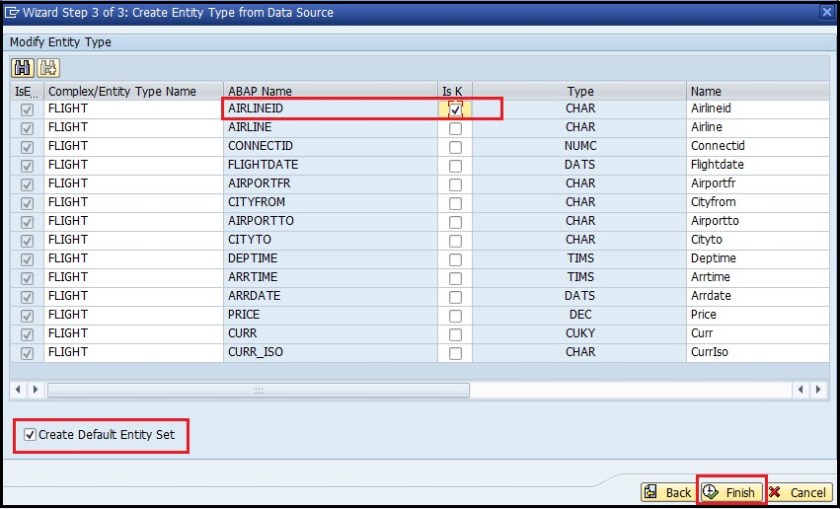
Step 7: As we have discusses earlier, at least one key field is necessary, so selecting here AIRLINEID as key and select default entity set checkbox.
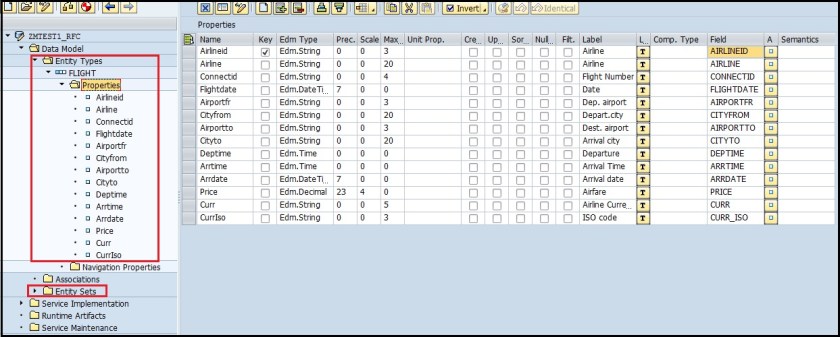
Step 8: Entity Type and Entity Set are created now.
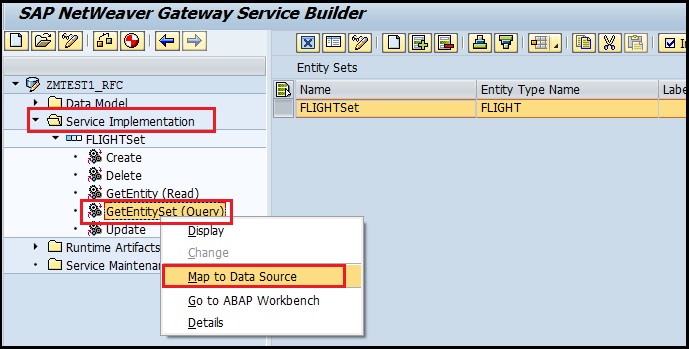
Step 9: Now we need to maintain mapping between oData service and BAPI. Expand Service Implementation folder → Right click on GetEntitySet (Query) → Click on Map to Data Source.
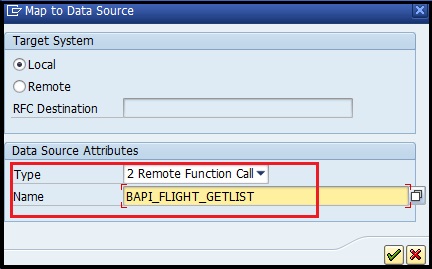
Step 10: Provide Data Source type = RFC & Name = BAPI_FLIGHT_GETLIST.
Step 11: We will get the following screen

Drag the respective fields of FLIGHT_LIST to Data Source Parameter to maintain mapping.
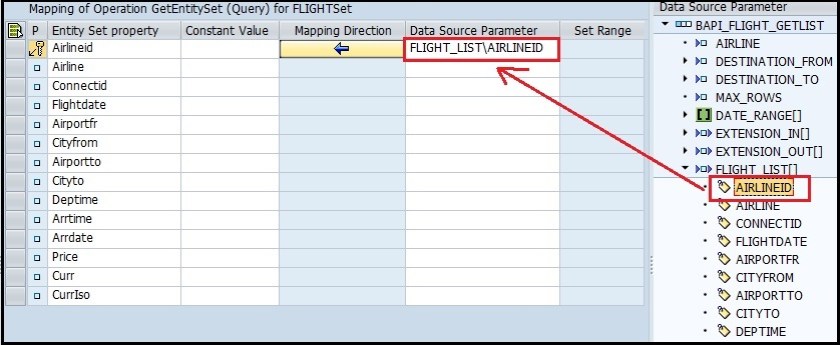
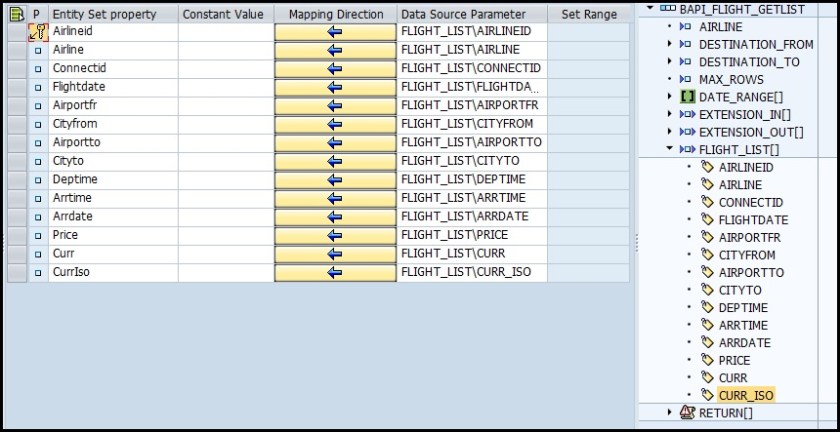
Step 12: Mapping for output fields is done in above step, now we need to do mapping for input field AIRLINEID.
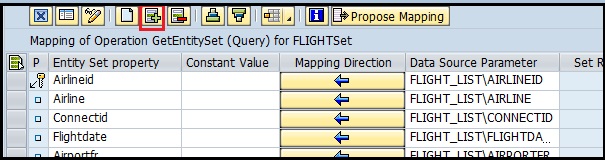
Click on Insert Row button to add a new row.
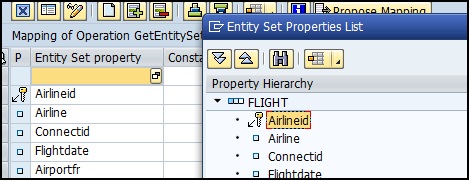
Do F4 and select Airlineid.
Drag Input parameter AIRLINE and drop to newly added field.

Now mapping is done.
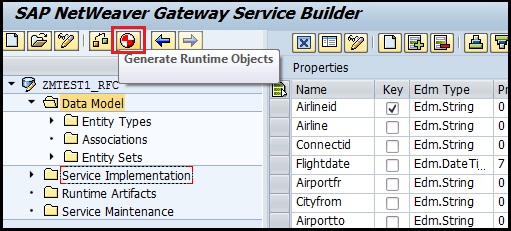
Step 13: Generate Runtime Artifacts by clicking on below marked button.
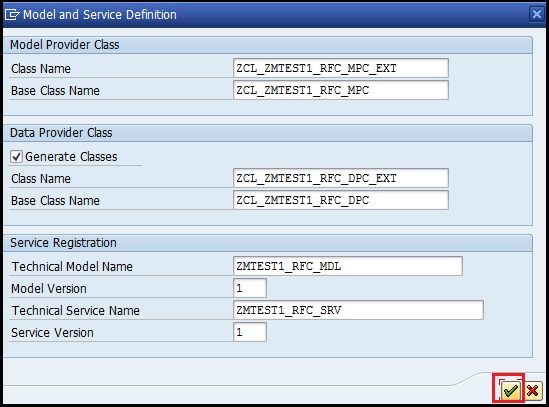
Step 14: Click on OK and save.
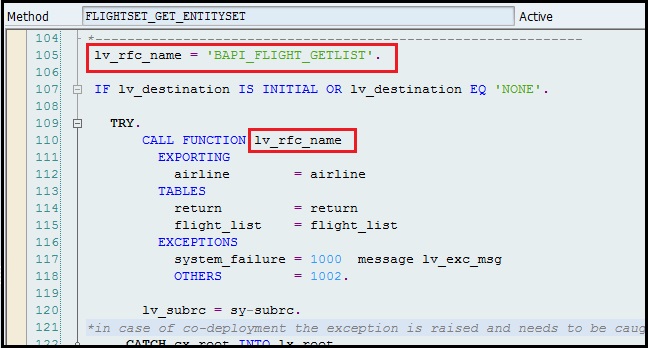
Step 15: You can check the auto generated code by this mapping in _GET_ENTITYSET method of Data Provider Base Class ( _DPC Class ).
Step 16: Now we need to register the Service.
GoTo the TCode: /IWFND/MAINT_SERVICE or follow below path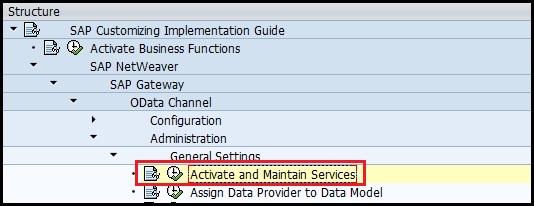
Click on Add Service button

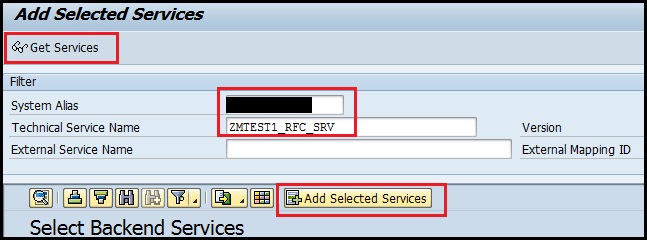
Step 17: Provide System Alias name and Technical Service Name (you can get it from Runtime Artifacts) → Press Enter or Click on Get Services → Select your service and click on Add Selected Services button.
Step 18: To test the oData service, select your Service and go to the TCode- /IWFND/GW_CLIENT or click on SAP Gateway Client.

Step 19: You’ll get the following screen → Click on EntitySets button and select your entity.

URL has been updated.

After executing, we get the following output.
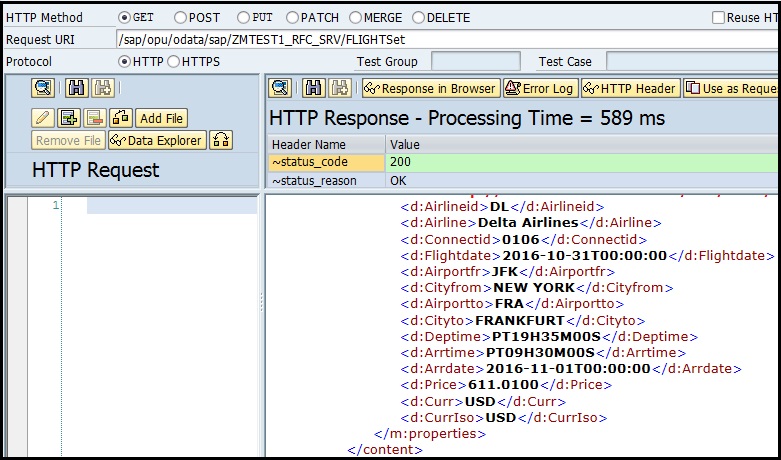
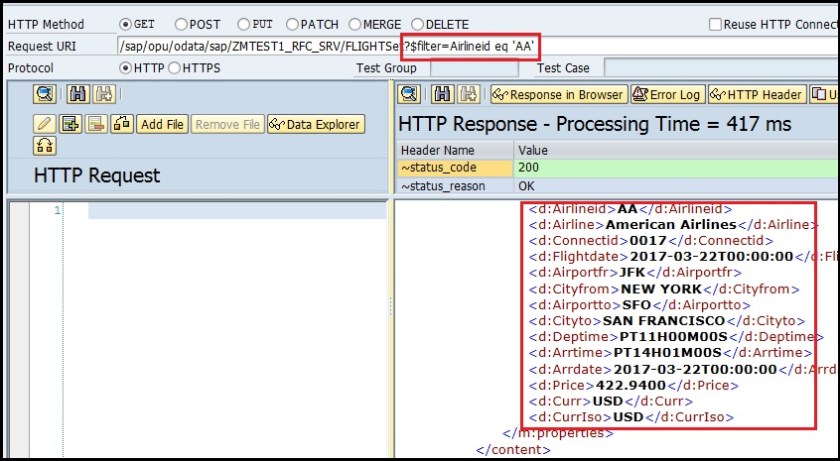
Step 20: We can provide input values through filter keyword in URL.
URL = /sap/opu/odata/sap/ZMTEST1_RFC_SRV/FLIGHTSet?$filter=Airlineid eq ‘AA’
 SAPCODES
Can we follow the ‘data source mapping’ procedure for POST/UPDATE tasks as well (Assuming using deep entity method)? or do we need to implement DPC_EXT class?
LikeLike