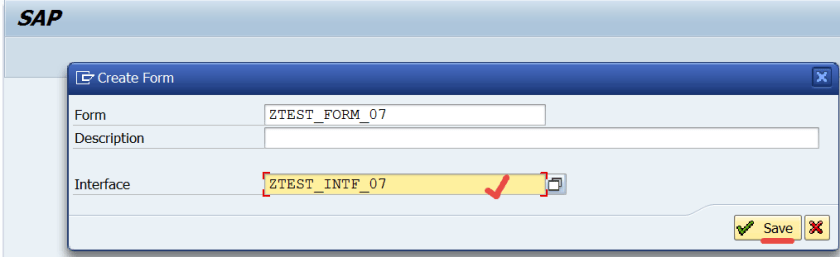
Go to Tx- SFP & create a form interface. Provide a name and Create.
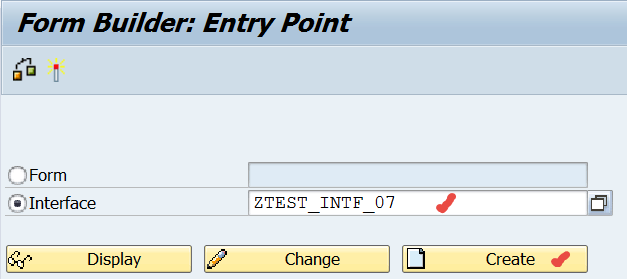
Save it.
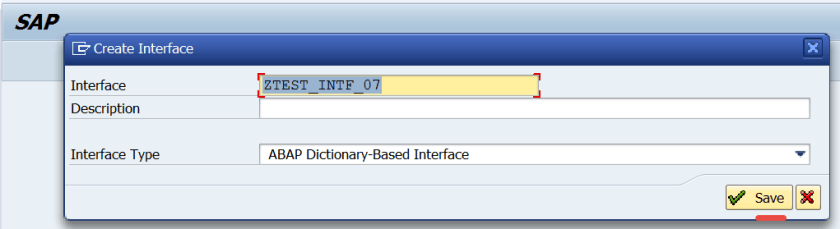
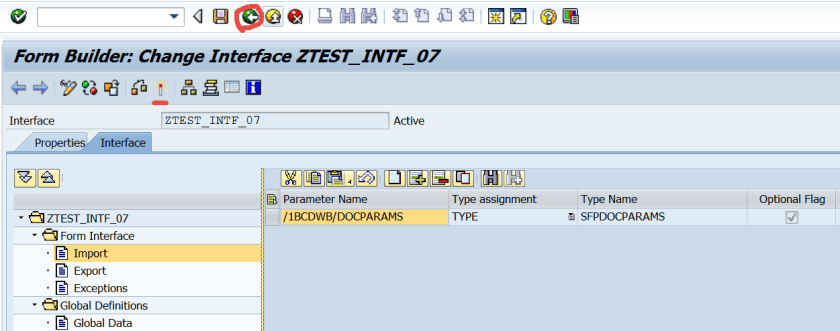
Just activate it and go back.
Provide a form name and click on create button.
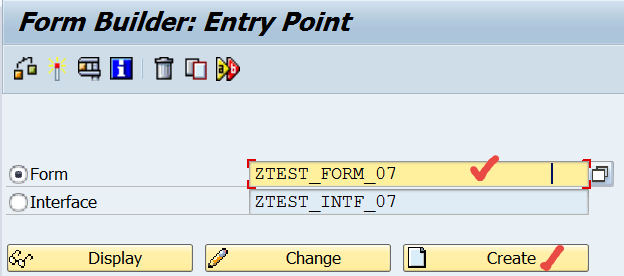
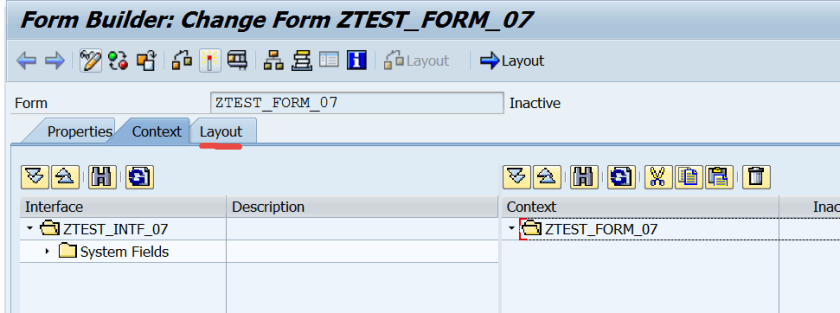
Assign the form interface & Save.
Go to the layout.
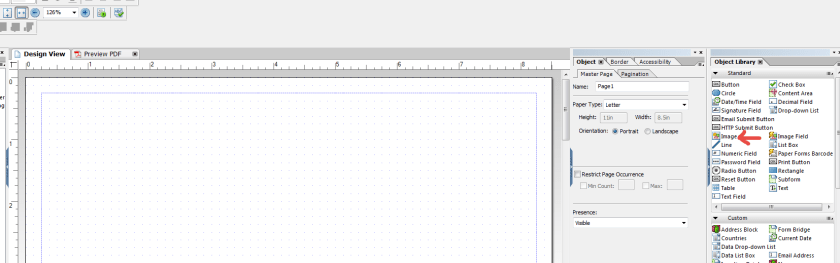
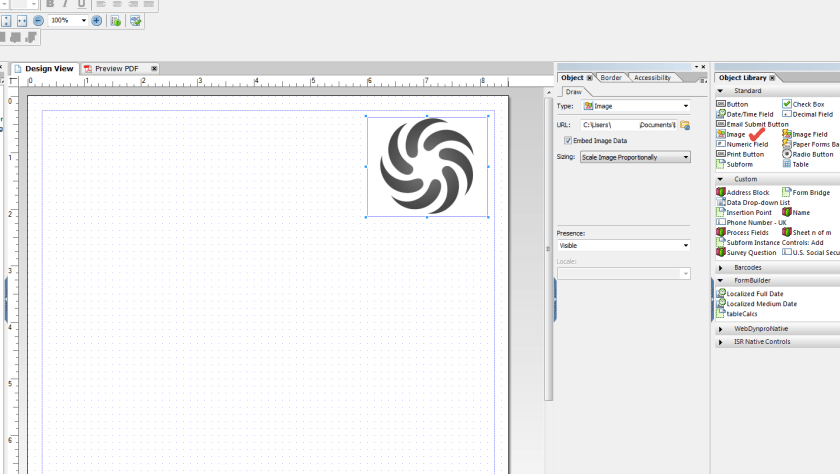
First let’s add an image to the page. So drag & drop the image on the design view of the page.
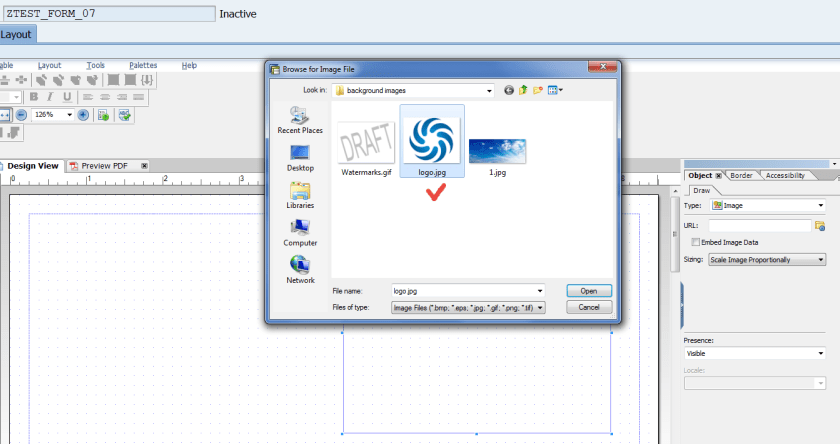
To assign an URL path, where the image is located, select the BROWSE button.
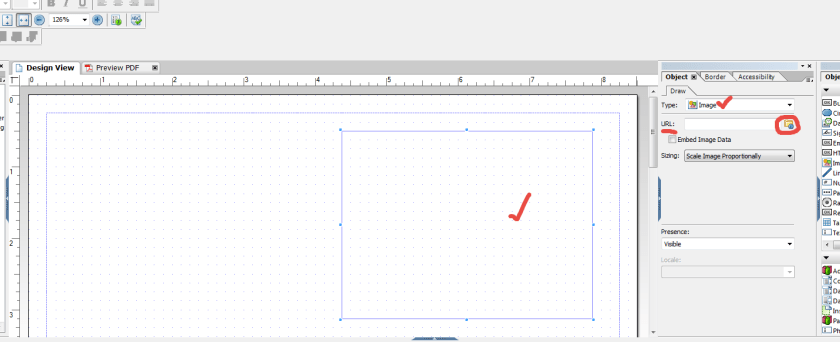
Load the image from a location.
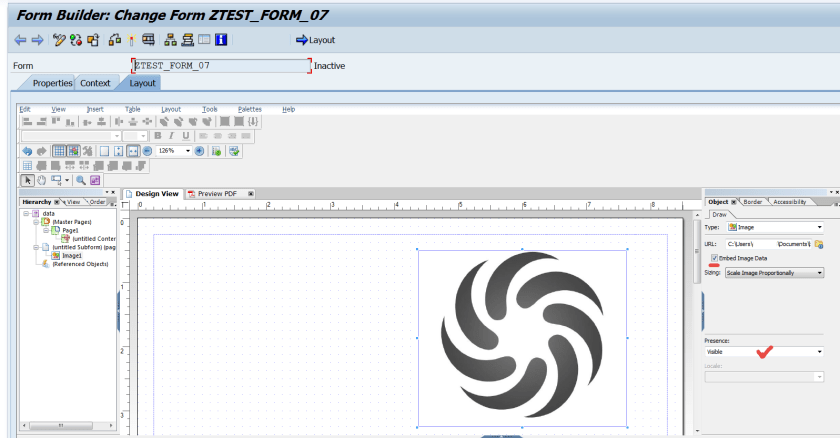
Check the Embed Image data checkbox.
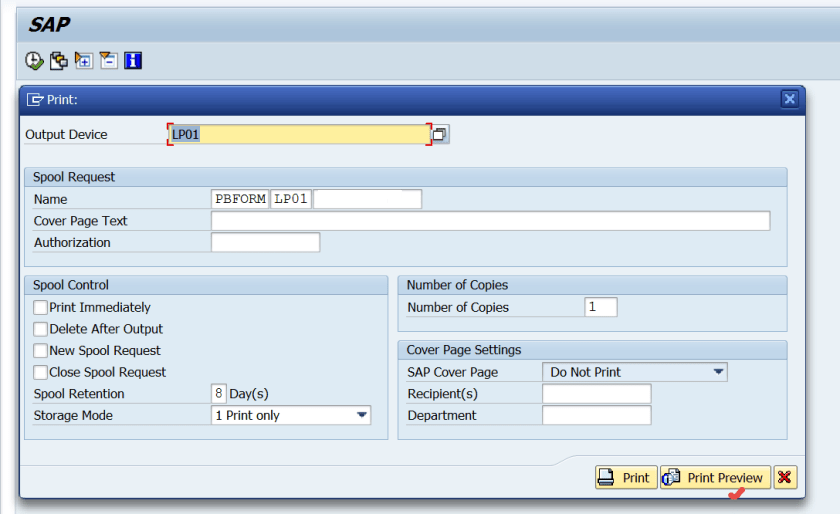
Activate and test the form.
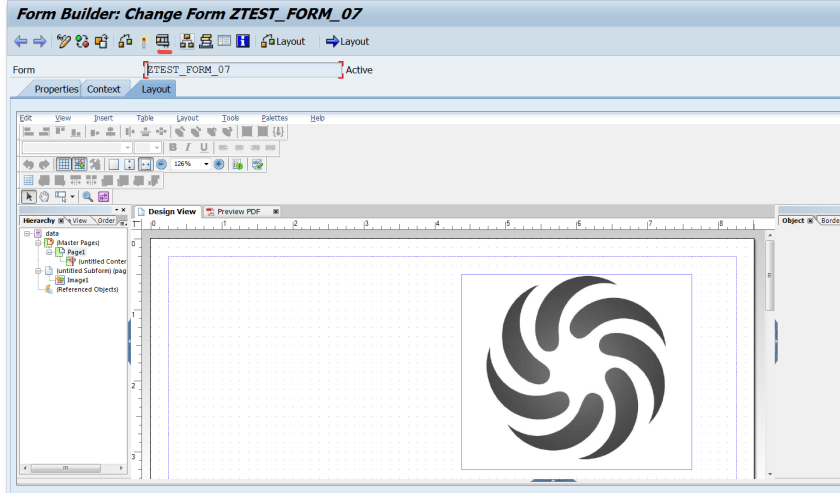
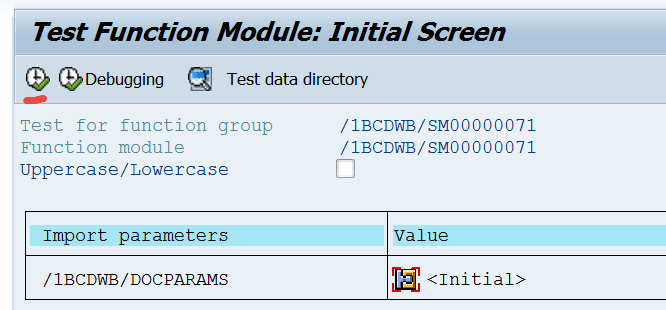
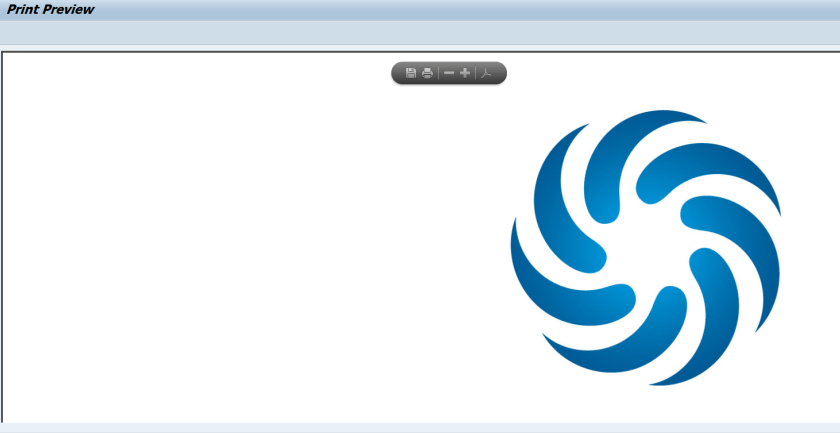
So here we have the logo Image appeared on the page.
Now let’s add a background image on the page. So go to the layout of the form and again DRAG & DROP an image on the page design view.
To assign an image URl, Browse and provide a loc.
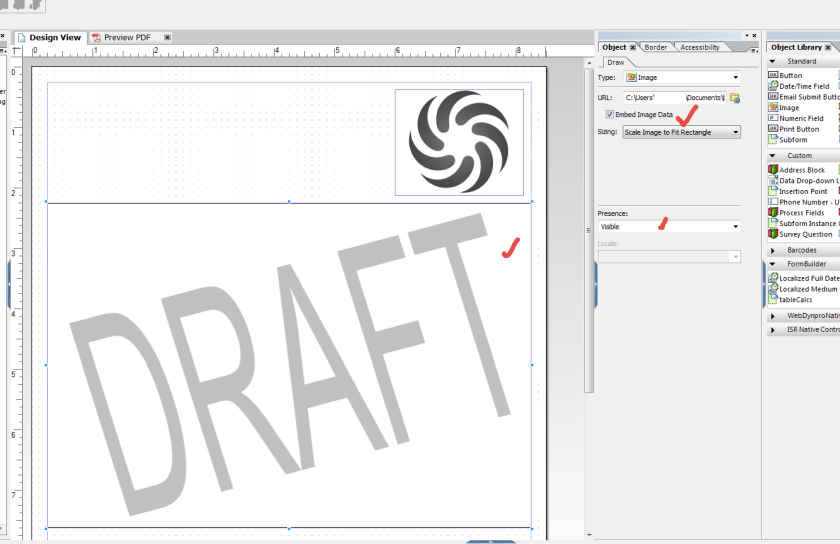
Right click on the Image ans set the property as SEND BACKWARD.
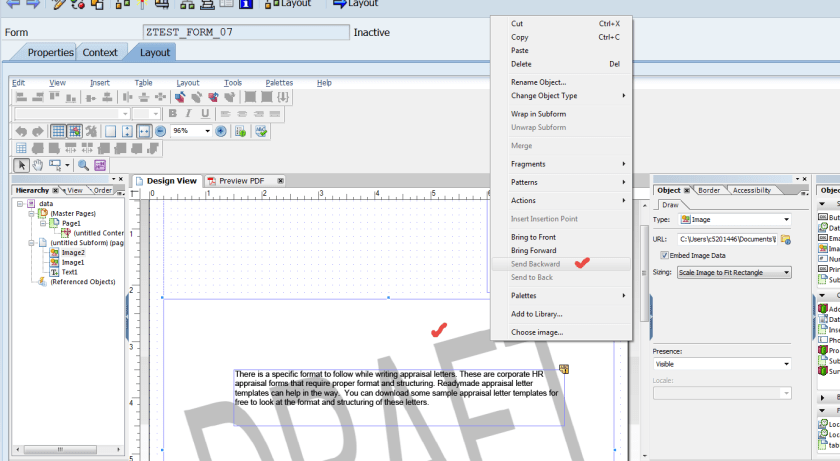
Now add TEXT box on the background image.
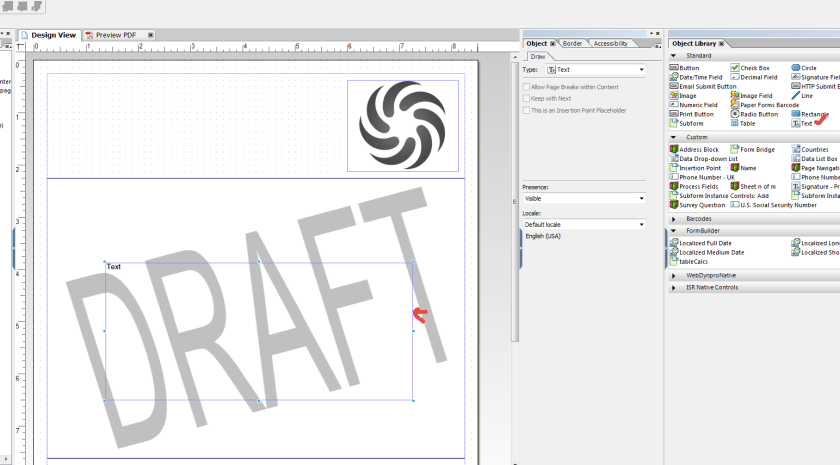
Provide some text in the text box.
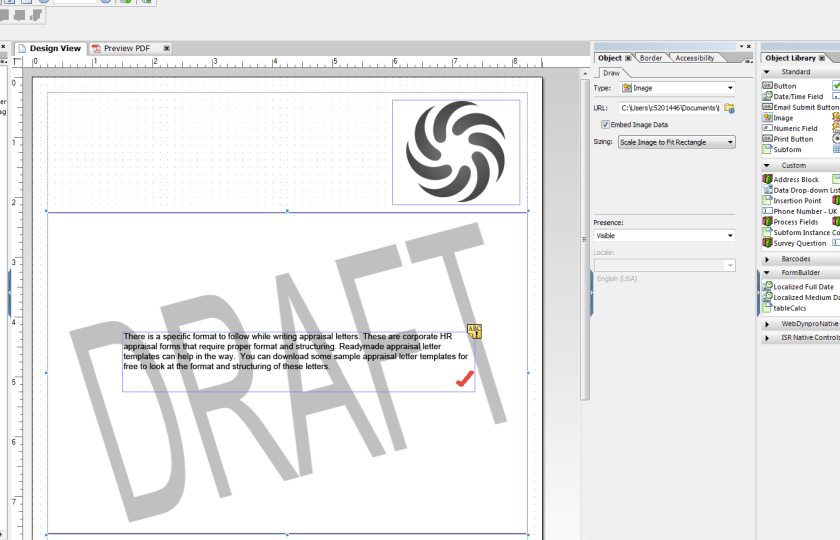
Activate and test the form.
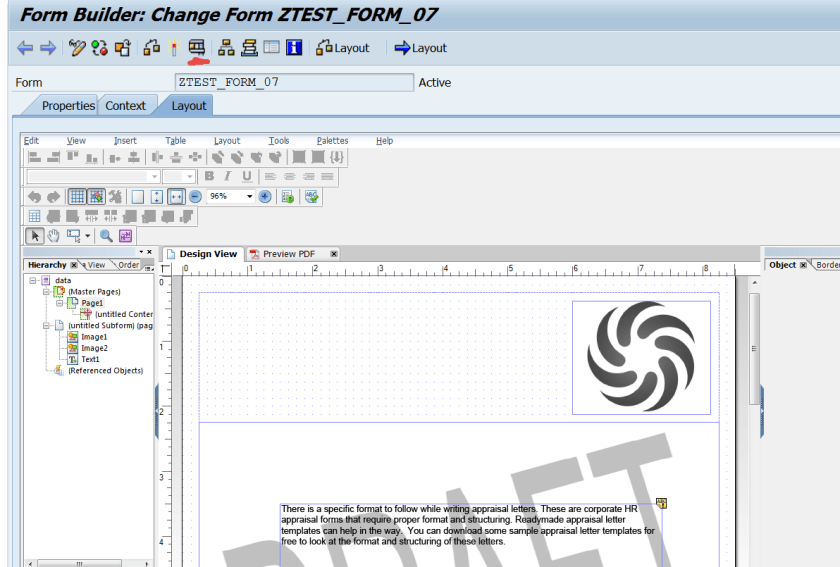
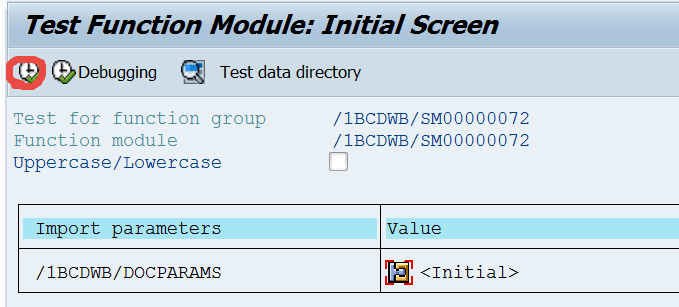
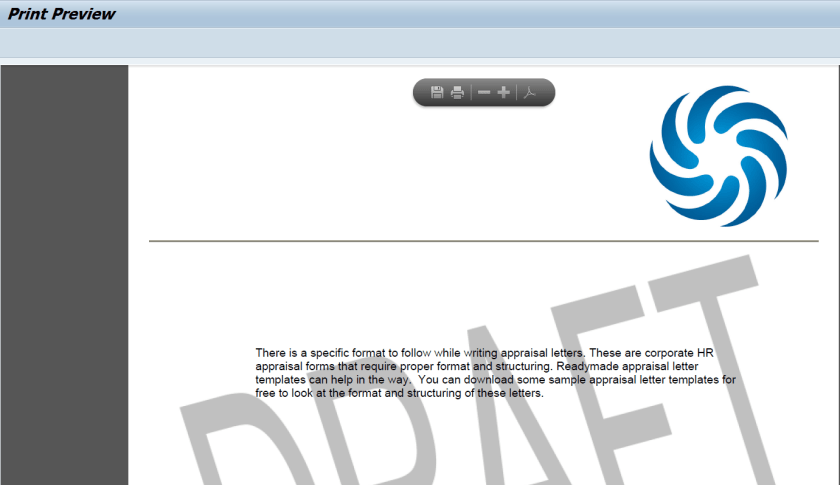
So here we have the background picture and the text on it.
 SAPCODES
Hello, let’s say we have an adobe form designed by LiveCycle designer and in the form, there are 2 pages, in 1st page we want to add an image with the name of RE-PRINT as a watermark which should hamper or hide any text on the page and page built is already in flowed position layout. How we can achieve this ?
LikeLike
Please help on this part.
LikeLike