Step1. Create a structure with a field which we will use in the creation of key field of a business object.

Step2. To create business object go to Tx- SWO1.

Provide a new business object name and click on create button.

Step3. provide the details and continue.

Step4. So we have created a business object. Now let’s create a key field.
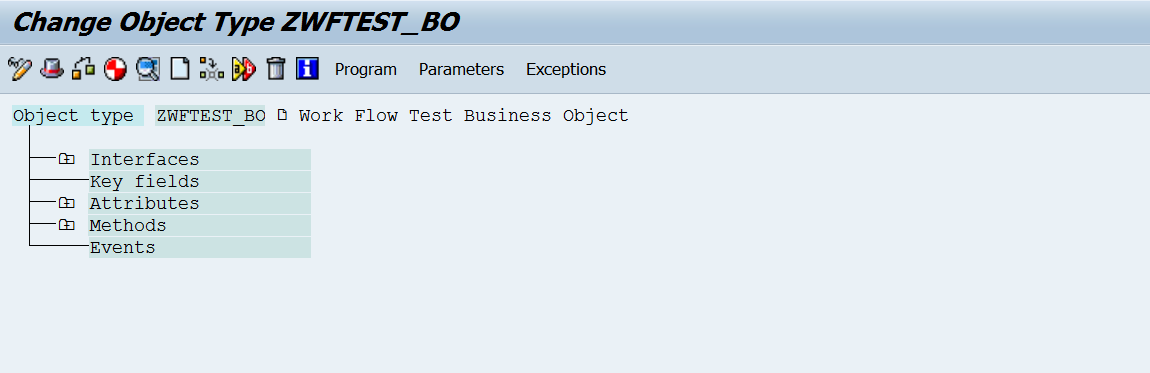
Step5. Put the cursor on the Key Fields and select create button.

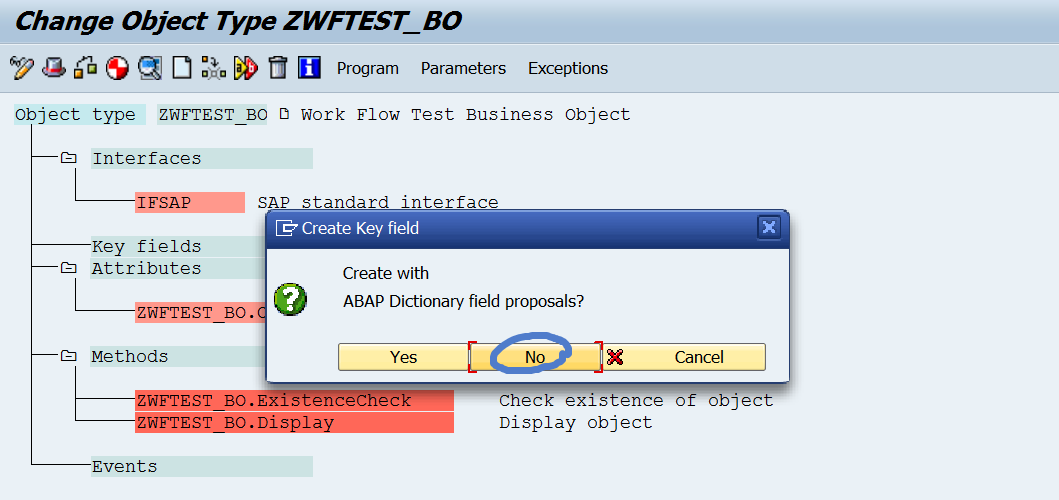
Step6. Select no.
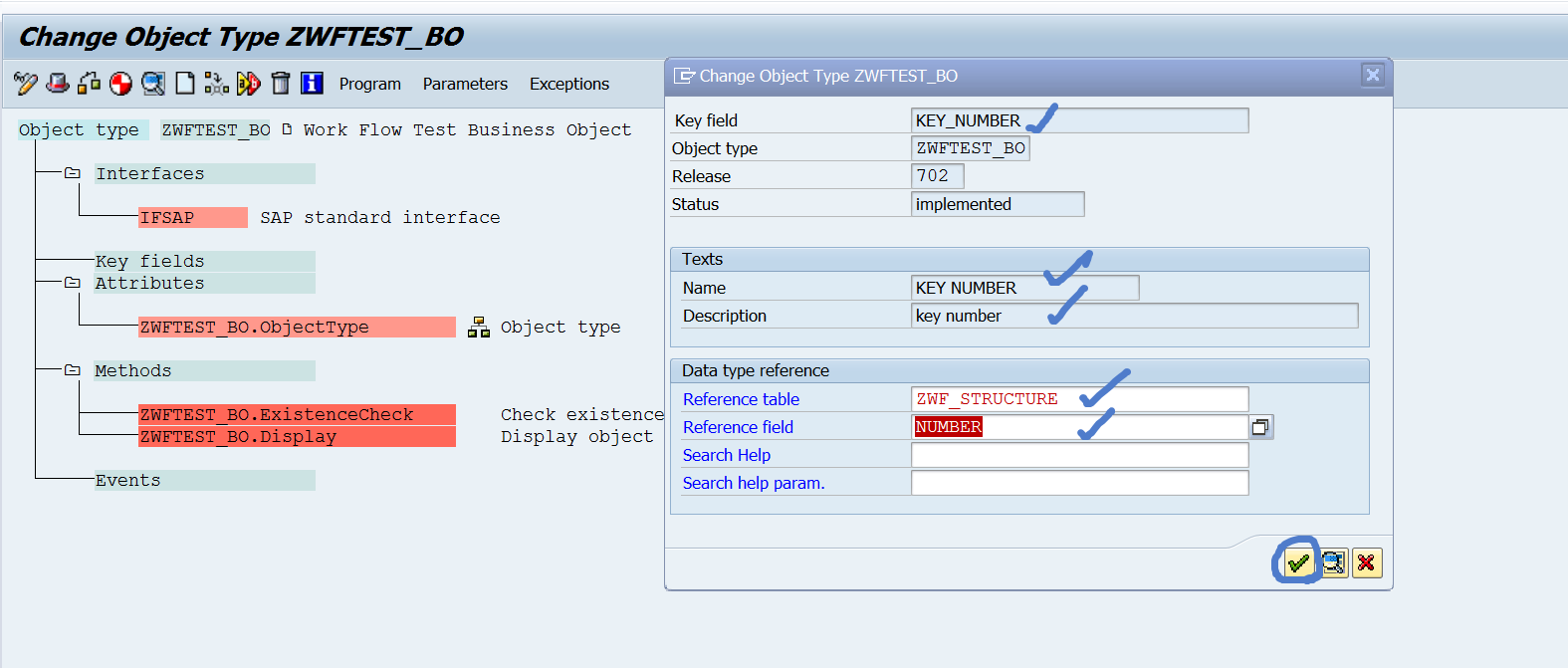
Step7. Provide key field name and its text and as technical data type refer to the structure field that we created in the first step.
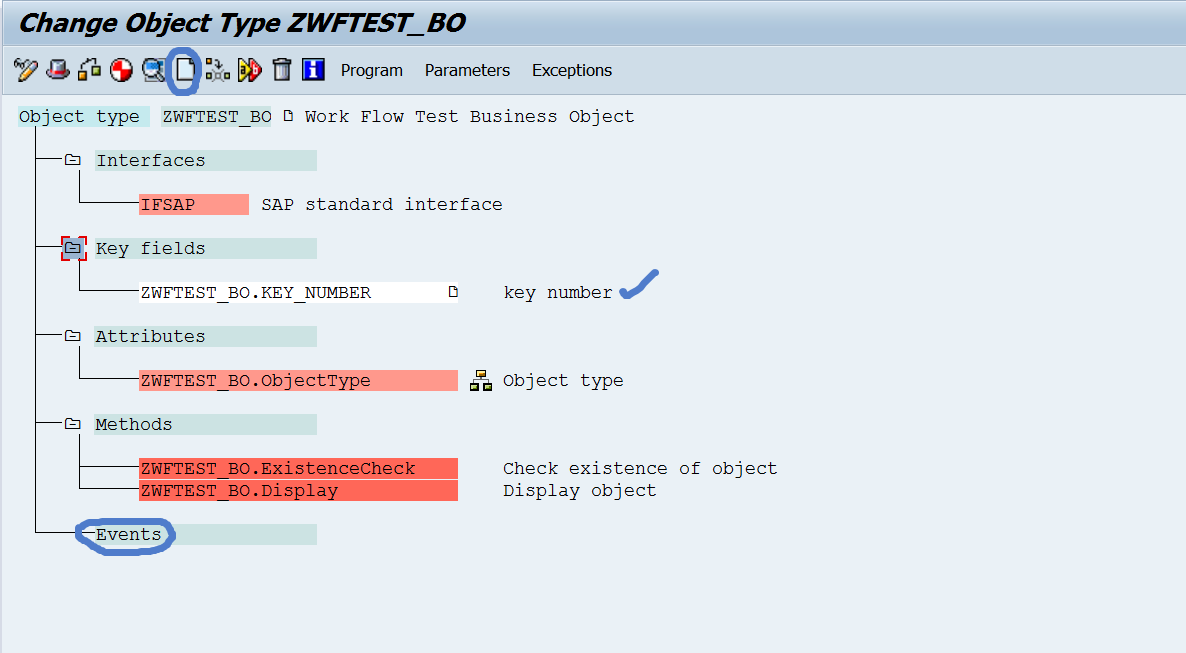
Step8. So we are done with the creation of the key field of the BO. Lets create an event in the business object(BO). Select events and click on create.
Step9. Provide the event name and its text and continue.
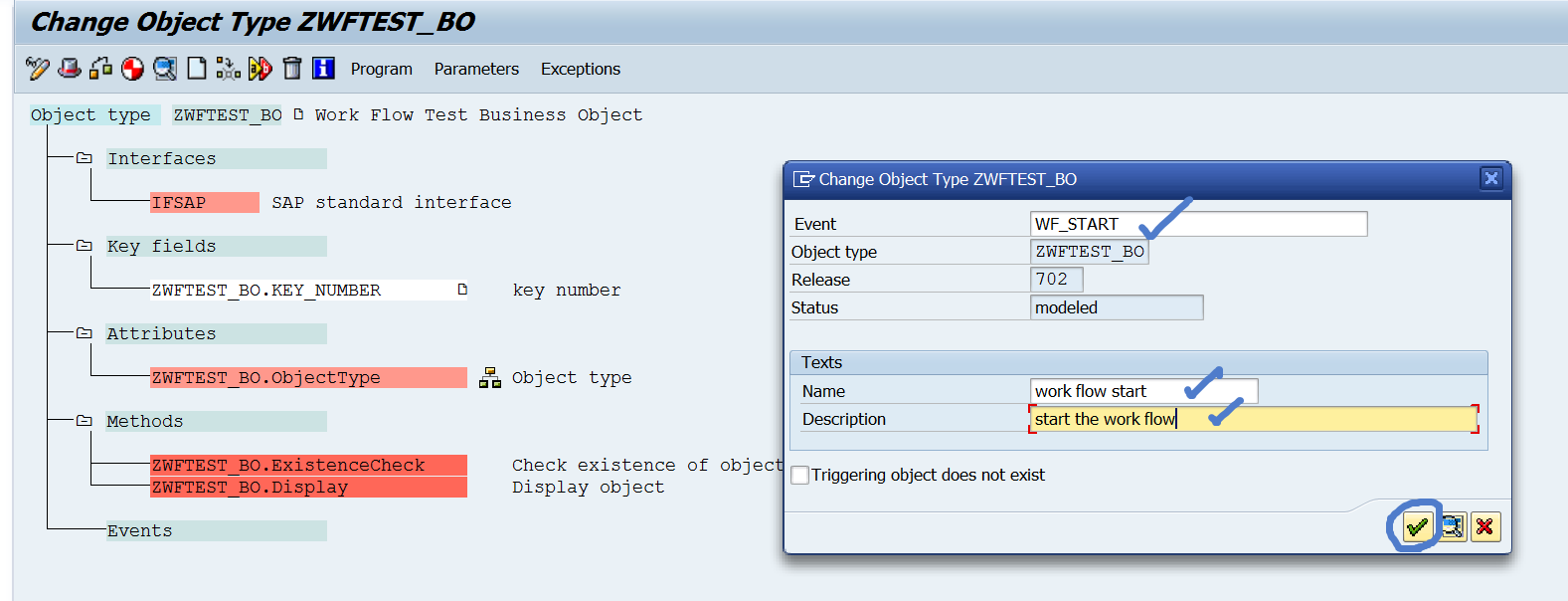
Step10. Implement the BO and implement the event and generate the BO.
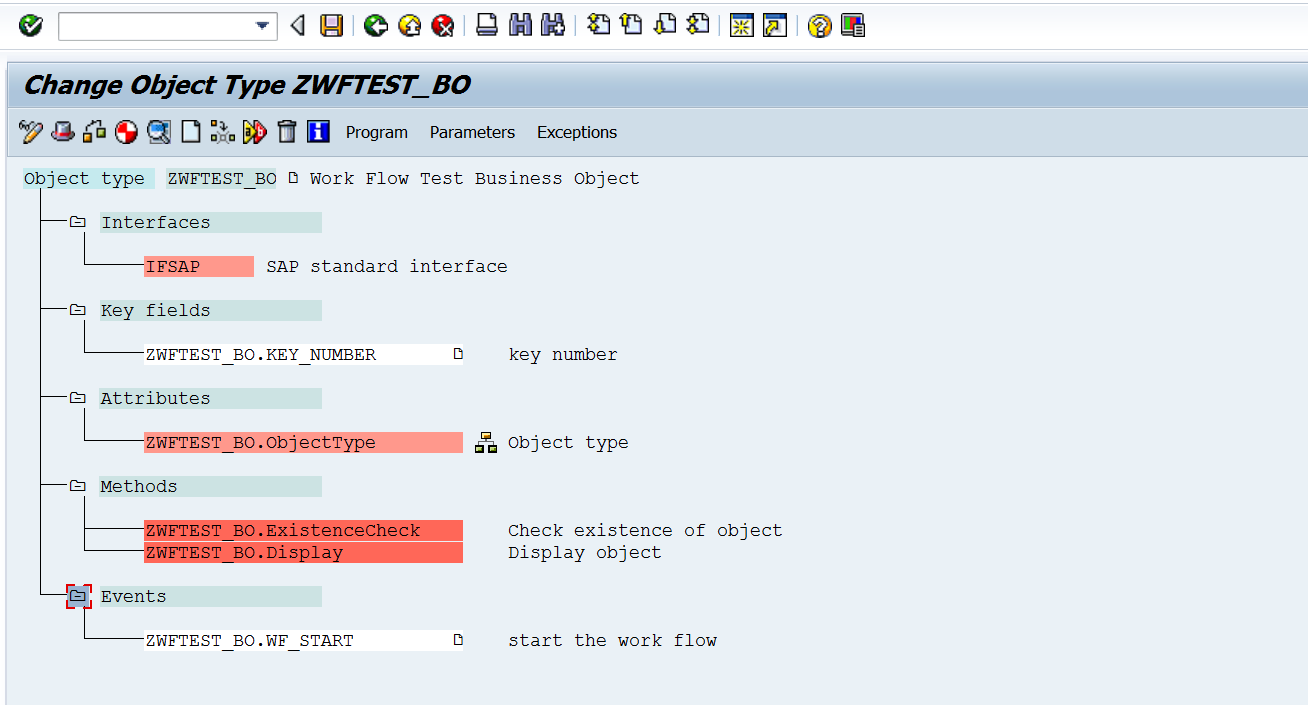
Step11. Now open the our created work flow in Tx- SWDD. Go to the work flow header.

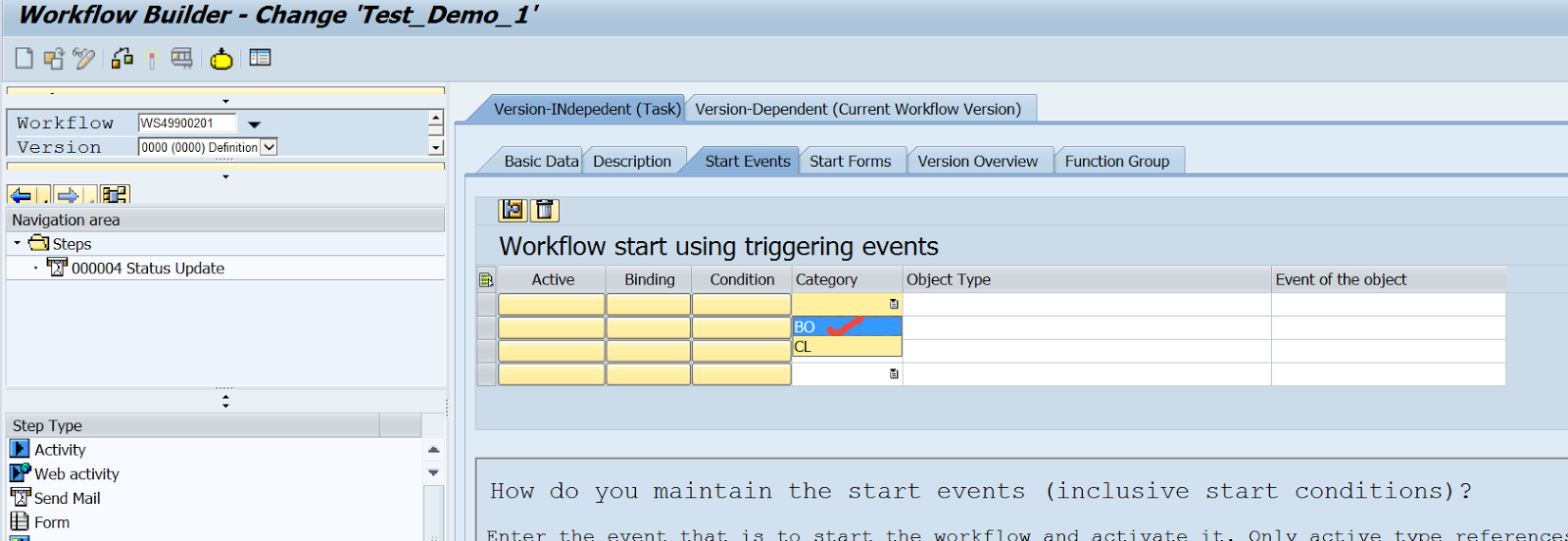
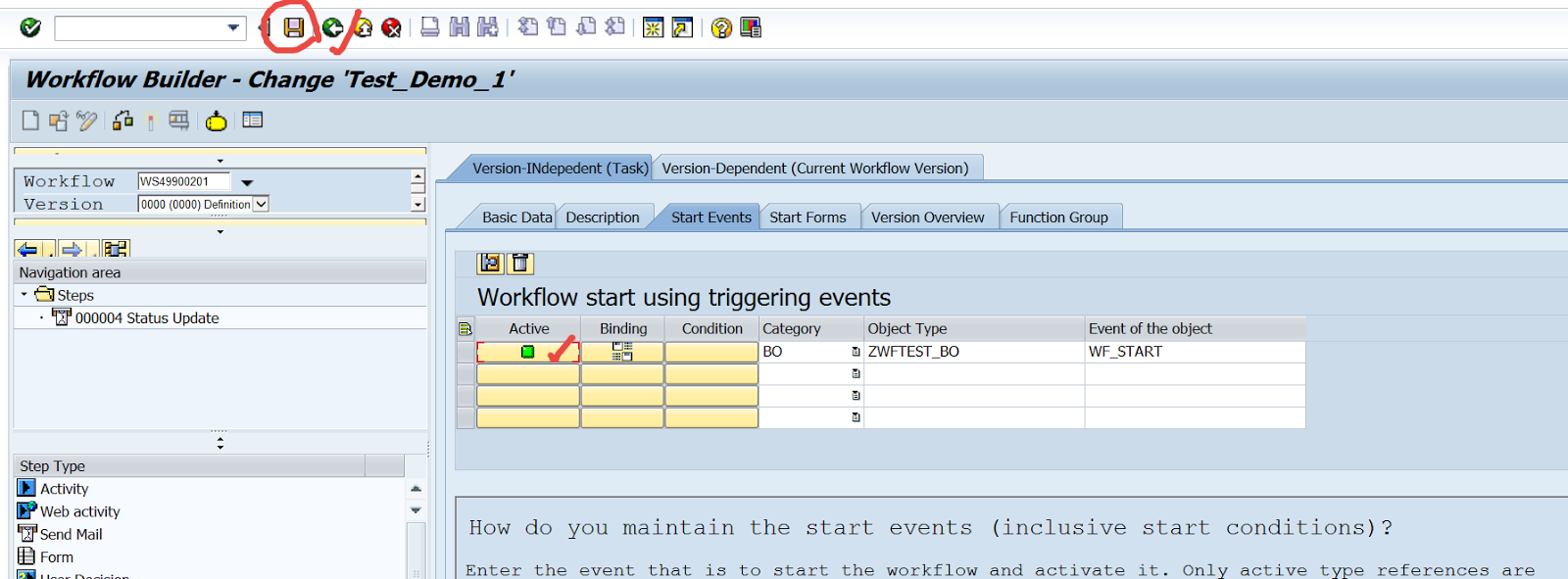
Step12. Go to the start event tab.

Step13.Select the drop down category .

Step14. Choose BO( business object). CL- class wil be used when we wil trigger the event by a class event.
Step15. provide the business object name and the event name which will be triggered to start the work flow. click on the Active button.
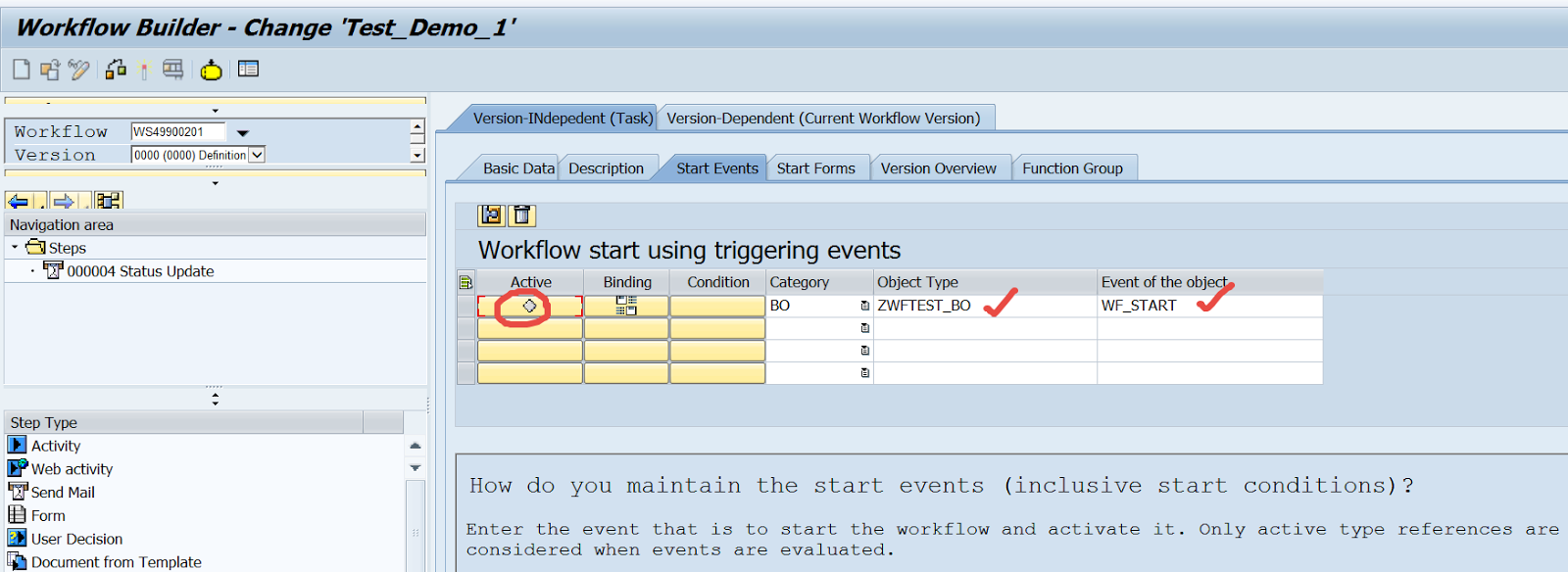
Step16. Its turns green. Save and go back.
Step17. When we trigger the work flow it should execute in the marked way.

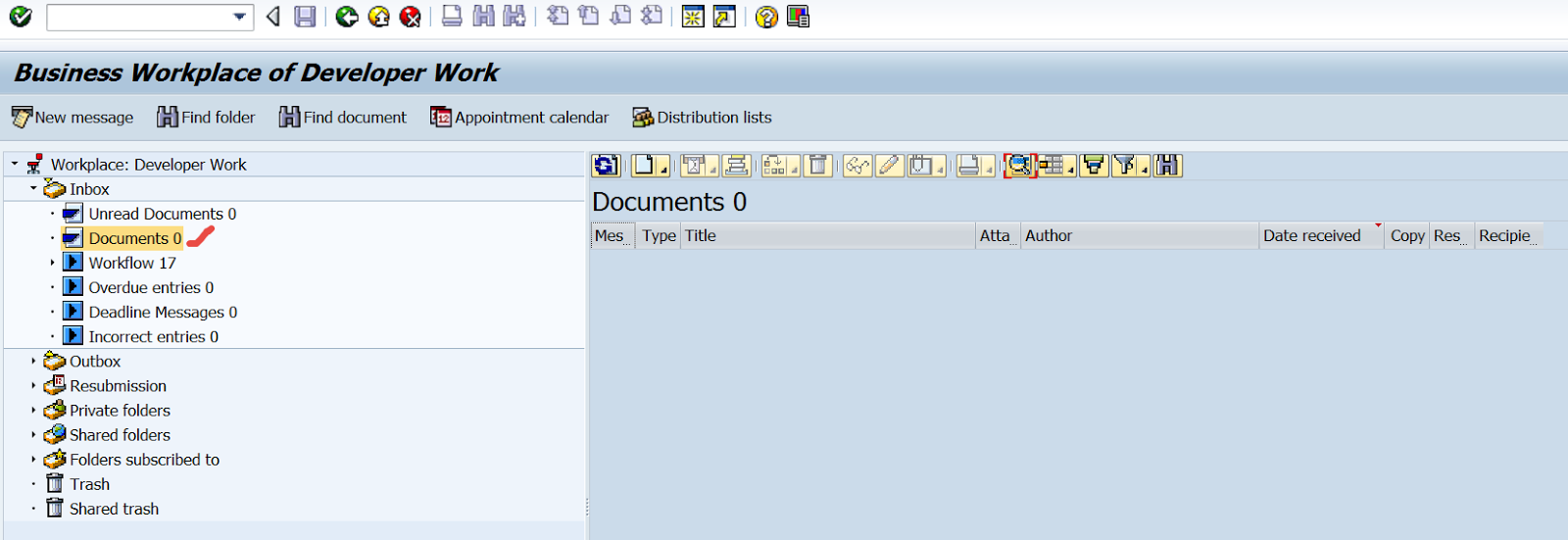
Step18. Go to USER tx- SBWP. Clear the documents so that we can easily identify the mail once send by the work flow.
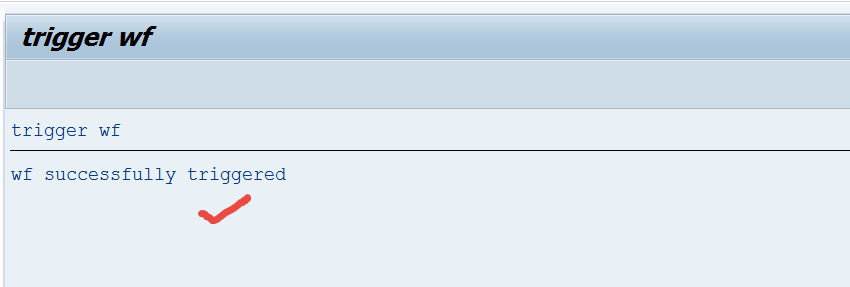
Step19. Here is the program which triggers the BO event programatically by calling the function module. Execute .

Step20. Report output.
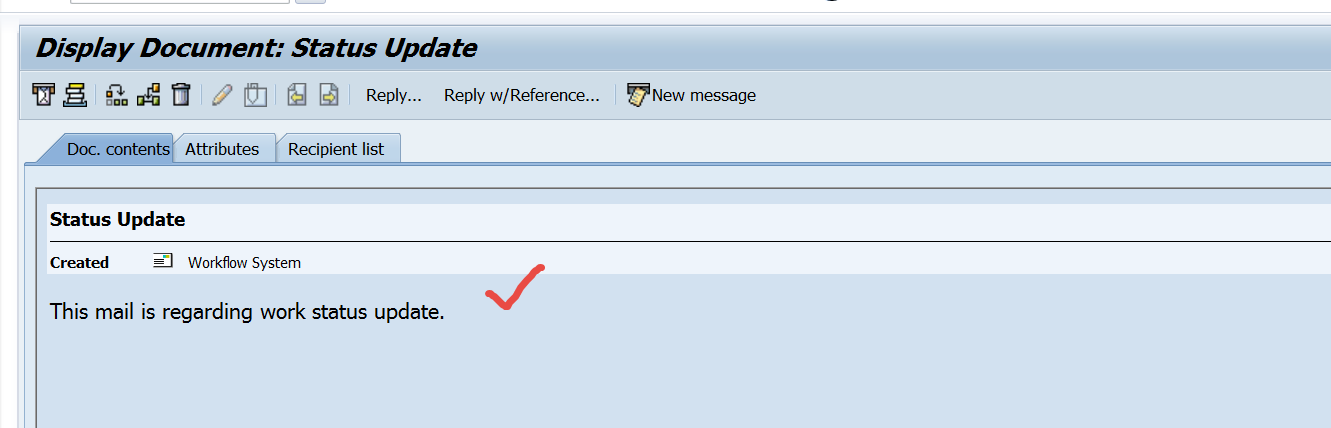
Step21. check the User tx- SBWP. So here once mail is arrived.
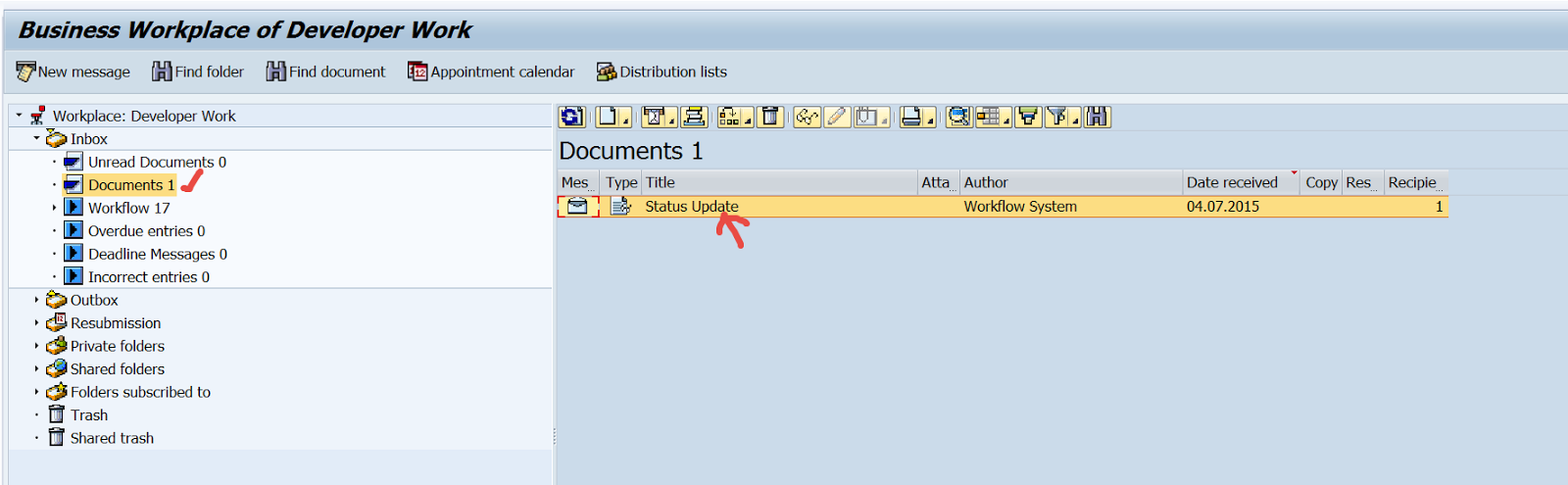
Step22. See the mail content.
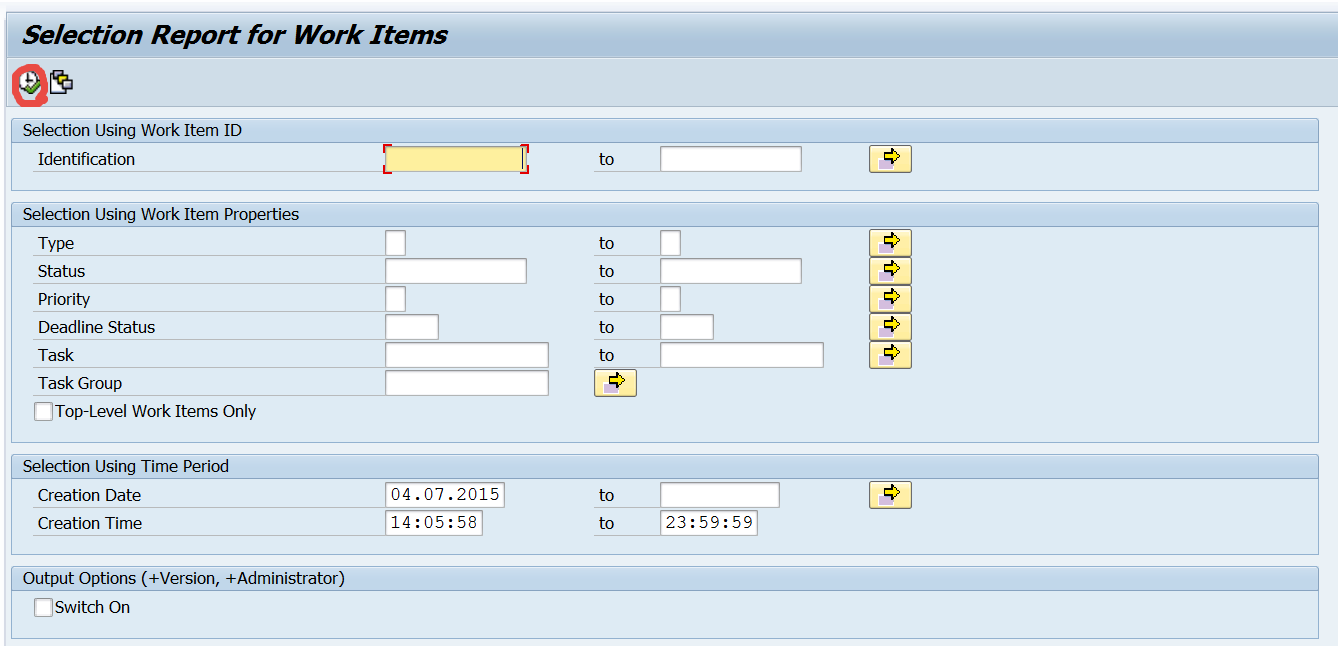
Step23. Here some additional steps the developer might check about the workflow that has been executed. Go to Tx- SWI1.

Step24. Execute the report.
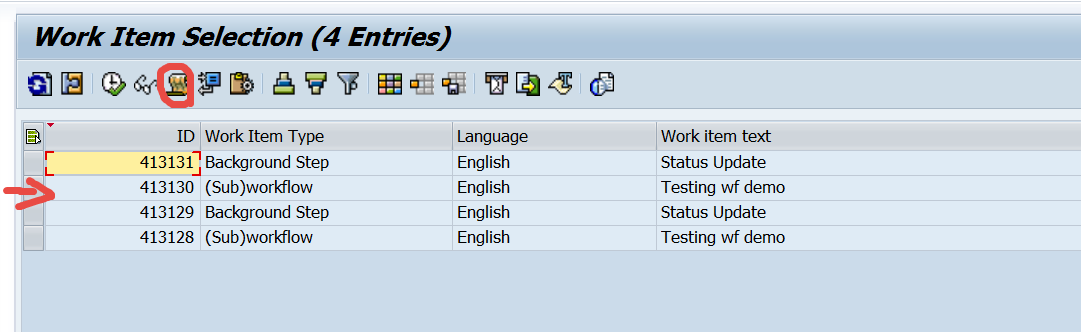
Step25. Select the Work flow and click on log button.
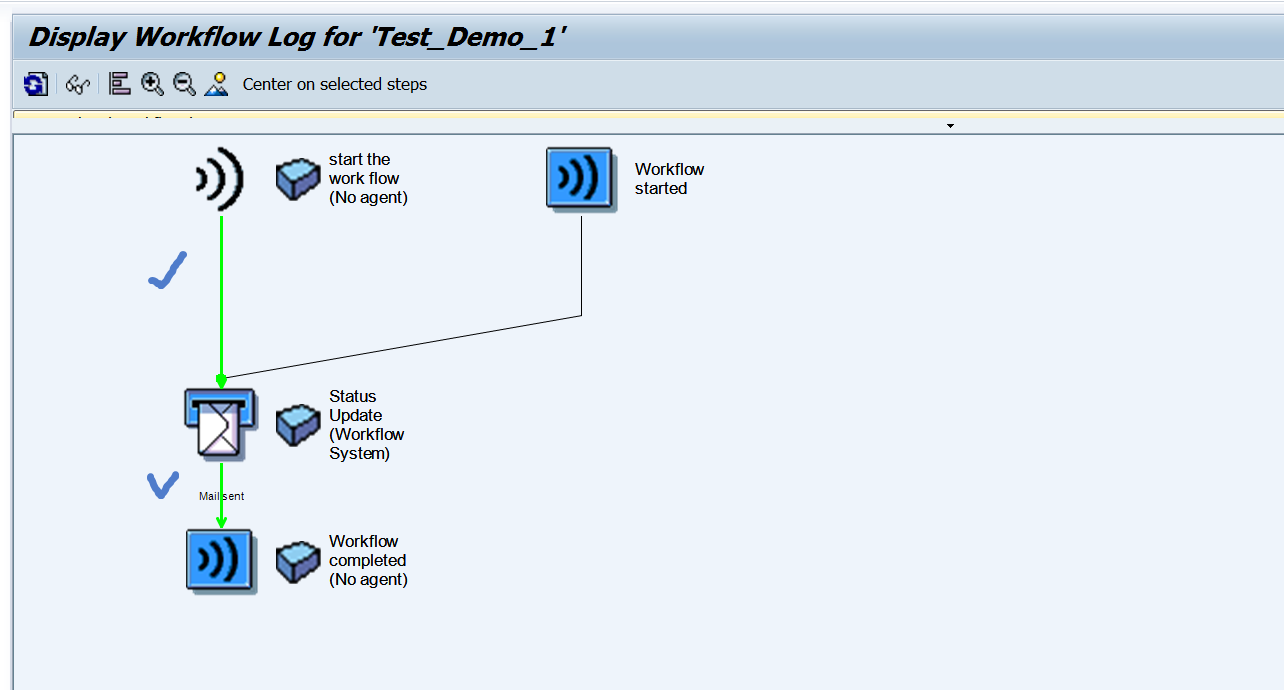
Step26. To see the graphical view of the work flow click on the highlighted button.

Step27. So here is the execution path.
 SAPCODES
I did the above one. When i am executing the program, it is only executing program, not workflow
LikeLike
working fine, thanks for uploading
LikeLike
I also have an issue where when triggering via the programs for both ‘BO’ and ‘CL’, it doesn’t trigger the workflow – even though it doesn’t return any error.
Please assist?
Thanks,
K
LikeLike
Only BO will work for the above example. Have you checked the case sensitive inputs to the function module. You can debug and see the FM output.
LikeLike
didn’t get it first text saying in going from right started but from second its goin directly down.
LikeLiked by 1 person
Only BO will work for the above example. Have you checked the case sensitive inputs to the function module. You can debug and see the FM output.
LikeLike